Accessibility, language access and digital confidence
You want to use a calm resource without fighting the screen, the language or the settings.
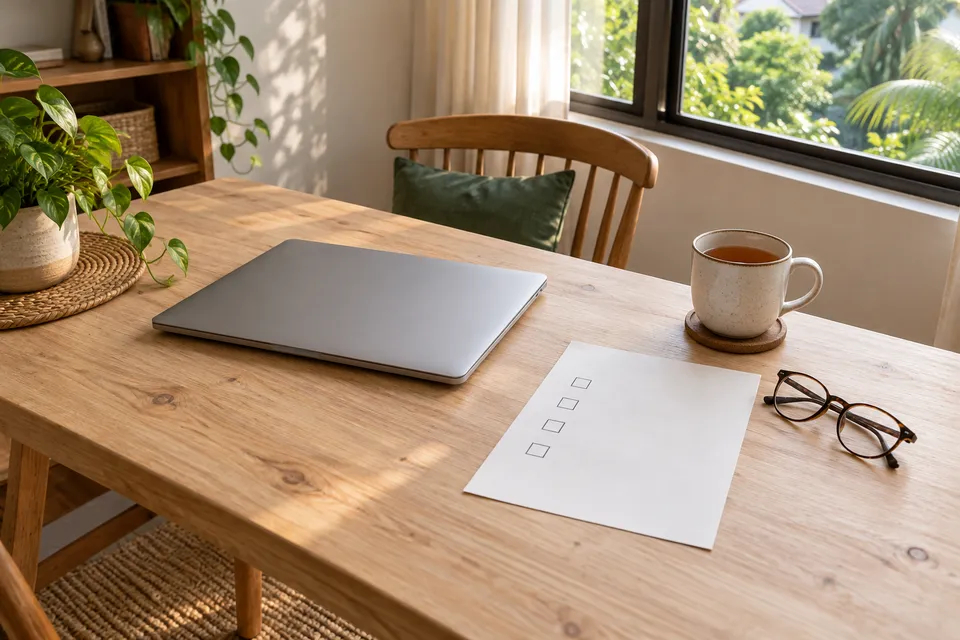
This page is for anyone who wants Blissful to be easy on the eyes, the data plan and the nerves. It covers text size, keyboard use, privacy, language, downloads and smaller plans.
You do not need to be good with technology. Each guide gives one task, one short list of steps and an honest note on what the site does and does not control.
Who is this page for?
It is for the reader with tired eyes at the end of a shift, and for the student sharing a family laptop. It is also for the auntie using her first smartphone, the person on patchy data in a kampung, and the child helping a parent read in their own language.
If you can open a web page, you can use these guides. Start with the section that matches your problem.
How do I make the text and screen easier to use?
Comfort settings mostly live in your browser or phone, so these guides show where to find them. Each one is short and can be read in a minute.
- Using the site’s large-text and print options: bigger text and a clean paper copy without losing the layout.
- Completing a planner with a keyboard: move through a planner without a mouse or touchscreen.
- Using a text-first version when audio is inconvenient: get the same help by reading.
- Choosing a low-distraction view for a long guide: hide the extras and keep only the words.
How do I keep my plans private?
These guides explain where your entries live and how to remove them. They matter most when a phone or laptop is shared.
- Using a personal planner safely on a shared device: simple habits for a family computer or an office laptop.
- Saving a resource without saving private notes: keep the page and leave your own words out.
- Clearing plans and bookmarks from this browser: remove what you saved, step by step.
- Using lightweight resources when connectivity is unreliable: save data and keep working when the signal drops.
- Using a QR code without entering personal information: scan, read and leave no details behind.
- Copying and printing a plan from a phone: get a plan onto paper or into a message.
How do I use the site in my own language?
Language choice changes how welcome a page feels. These guides help you pick the right edition and help a relative do the same.
- Choosing the site’s language and Chinese writing edition: switch language and know which Chinese edition you are reading.
- Understanding the difference between a translated website and a translated app: why one can be in your language and the other not.
- Helping a relative use resources in their preferred language: sit beside someone without taking over.
- Reporting a confusing translation with a specific example: how to point to the exact line so it can be fixed.
How do I download an app with confidence?
Some readers want to try a guided meditation in an app. These two guides cover the step from our page to the store.
- Understanding what happens when you leave our site for an app: where the link goes and what you control.
- Checking an official app listing before downloading: the checks to make before you tap Install.
What if a plan feels too big?
When energy is low, the plan itself can become the problem. These guides make it smaller.
- Using a one-step task view when a full plan feels too much: see only the next step.
- Keeping instructions visible while you complete a task: stop flipping between screens.
- Choosing a focus tool that does not rely on streaks or scores: focus help without pressure to perform.
- Changing the amount of detail in a planner without losing your work: zoom a plan in or out safely.
- Making a smaller plan on a day with less available energy: a kinder version of the same day.
- Checking whether a guide or app can be used without audio: test before you rely on it.
- Restarting after a changing health situation interrupted your routine: shrink the routine to fit today.
- Asking for a practical adjustment without disclosing private health details: wording that asks for the change and keeps the reasons yours.
Which tool is a good first step?
Try the meditation timer. It is one screen, has big buttons and works without any account.
Where does the Miracle of Mind app fit?
It is optional. If you want to hear a short guided meditation, Sadhguru’s free seven-minute session in the Miracle of Mind app is one place to try, and everything above works without it. Our app guide sets out what the official sources describe.
If a screen or a practice leaves you feeling worse, stop and rest. Our support page lists where to start, and a doctor or counsellor is always a fair person to ask.
Common questions
Does Blissful have its own text-size or contrast buttons?
Not at the moment. The pages are built to follow your browser and phone settings, so zoom, larger system text and reader view all work. Our large-text guide shows the quickest way to use each one on a laptop or phone.
Do I need an account to use the planners?
No. You can open a planner and start typing. What you enter is handled in your own browser, which is why the privacy guides explain how to copy, print or clear it, especially on a phone or laptop that other people also use.
Can I use the site in Malay, Chinese, Tamil, Thai or Vietnamese?
Yes. The header lets you switch between English, Malay, Chinese, Tamil, Thai and Vietnamese. Each language page is written for readers of that language rather than translated word for word. The language guides explain how to choose and how to report a confusing line.
What if I cannot listen to audio right now?
Every guide here is written text, so you can read it on the LRT, in a meeting room or in a house where someone is asleep. The text-first guide also helps you check whether any other resource can be used without sound.
What if a full plan feels like too much?
Use the smaller views. One step at a time, a plan with fewer lines and a gentler version for a low-energy day are all covered below. Doing less on a tired day is a fair choice, not a failure.
Where do I go if I am struggling and not only confused by a screen?
These guides are for everyday wellbeing and for using the site comfortably. If you feel distressed, hopeless or unsafe, please read our support page, which lists where to start, and talk to a doctor, counsellor or someone you trust.
Read next
When you have found a setting that feels comfortable, a short guided sit is a gentle way to try it out, at your own pace and with the volume you choose.